Wordle: 1

Monday, 14 April 2014

Ways of running macros

Excel is Fun.

Most users will automatically run a macro from either button on the Quick Access toolbar (known as Toolbars on previous versions) or via the conventional Macrodialog box.

The following is a list of ways to run a macro:

1. The Macro dialog box.
Version 2003 (or earlier) - Click on the Tools menu, select Macro and chooseMacros. 
Version 2007 (or later) - From the Developer tab, click the Macro icon.

Or the shortcut key to all versions is Alt + F8.

Select the Macro you wish to run and click on the Run button.

2. Using a shortcut key as assigned, i.e. Ctrl + e.

3. From a Button on the worksheet.

4. From an icon Button on the Quick Access toolbar.
Previous versions uses Toolbars.

5. From the Ribbon Bar (though requires some XML knowledge).
Previous versions uses a menu item from the menu bar.

6. From another type of object, e.g. Chart or Graphic image.

7. From a Control drawn on the worksheet, e.g. Combo Box.

8. A worksheet or workbook event, e.g. when a workbook is opened
This is maintained in the Visual Basic Editor (VBE) interface.

The last item is a great way to get Excel to run your code without any user intervention as it's uses Excel's own processes to trigger the macro.

Most users will not be aware that Excel constantly listens for events to happen but do not see any physical results until they learn to manipulate the event handlers provided.

There are many events from a Control (i.e. Button) to opening (Open) and closing (Close) workbooks.

Think about how Data Validation and Conditional Formatting work in Excel worksheets. They respond to when a user has clicked the Enter key (Worksheet_Change) to trigger the two utilities.

Sunday, 9 March 2014

Calculating Weighted Average in Excel.

The concept of average comes from mathematics, average can be defined as the result obtained by adding several quantities together and then dividing this total by the number of quantities.
Usually when we calculate average, we put same weight or priority to each value, this is called un-weighted average.
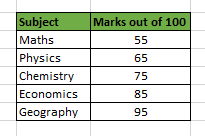
For example, let’s say we want to calculate the average of Marks of a Student in five subjects:
The marks are as follows:
Marks-of-Sutudent-in-5-subjects
So, we will sum the numbers and divide the result by 5 : (55 + 65 + 75 + 85 + 95)/5 = 75
This is the un-weighted average because in this case we have assigned same significance to each number.

So, what is the Weighted Average then?

Weighted Average is a type of average where item weight is also taken into consideration while finding the average. And because of this one element may contribute more heavily to the final result than another element.
Let’s understand this with the below example:
The marks of the student in 5 subjects are as follows:
Marks-of-Sutudent-in-5-subjects
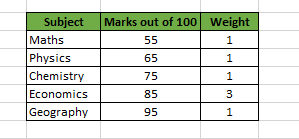
Now, let’s consider the student want an admission to an Economics college. So, obviously the college will put more emphasis on the Economics marks and hence they have come up with an idea of assigning weight to each subject as follows.
Marks-of-Sutudent-in-5-subjects-with-weights
This shows that the college gives 3 times more emphasis on the marks of Economics than another subject, while finding the average.
So, now we find the weighted average of the marks according to the above table as:
((55 x 1)+(65 x 1)+(75 x 1)+(85 x 3)+(95 x 1)) / (1+1+1+3+1)
This comes out to be = 77.85, which is higher than the un-weighted average i.e. 75.
So, in this case the Economics marks have contributed more to the final result than any other element.

How to Calculate Weighted average in Excel?

After understanding the concept of Weighted average in Excel, you must be thinking how to calculate it in Excel.
So, for this you have two methods:
Method 1: Calculating Weighted Average by using Sum Function:
This is an easy method and it requires you to have knowledge of SUM Function. The formula is as follows:
= SUM((1st Element * Weight of 1st Element), (2nd Element * Weight of 2nd Element), … , (nth Element * Weight of nth Element)) / SUM(Weight of 1st Element, Weight of 2nd Element, Weight of nth Element)
Although this method is easier to understand but it is not a feasible option if you have large number of elements.
Method 2: Calculating Weighted Average by using SUMPRODUCT Function [Easy Way]:
This method requires you to have understanding of Excel SUMPRODUCT function. The formula is as follows:
= SUMPRODUCT(, )/ SUM()

An Example on Calculating Weighted Average in Excel:

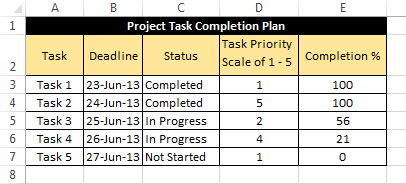
Below table shows the data from a “Project Task Completion Plan” table.
Project-task-Completion-Plan
As you can see that, in the above table there are five tasks each one with its own “priority” and “completion percentage”.
So, in this case “Priority” will act as the weight assigned to completion percentage.
Now, to find the weighted Average we can use a formula:
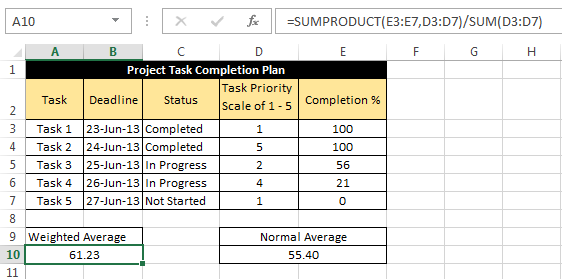
=SUMPRODUCT(E3:E7,D3:D7)/SUM(D3:D7)     [Method 2]
Which results into 61.23
Alternatively, Weighted Average can also be calculated using the formula:
=SUM(E3*D3,E4*D4,E5*D5,E6*D6,E7*D7)/SUM(D3:D7)    [Method 1]
Project-task-Completion-Plan
Note: In the above image notice the difference between the result of un-weighted average and weighted average.
So, that was all about finding weighted average in Excel.
Learn more with Excel
Become a Member of Excel Is Fun. :)

10 best new features in Excel 2013.

Almost everyone will find something to appreciate in Excel 2013. It's more functional and easy to use. Everyone's going to love Flash Fill. Experienced number crunchers will appreciate the new data model feature. Inexperienced users forced to get more out of the application than their experience really supports will appreciate Recommended Charts, Recommended PivotTables, and Quick Analysis. The emphasis seems to be on easy access to features that were, prior to 2013, a bit harder to implement. These are the 10 new features that I think will benefits most users.

1. Flash Fill

Perhaps the closest thing to magic Excel users will ever see in a workbook is Flash Fill. This feature anticipates formatting and data requirements by recognizing patterns so it can finish what you start. Figure A shows a typical use for Flash Fill. First, I transposed a record’s name value into last name, first name order. While doing the same for the second record, Flash Fill recognized a pattern and suggested possible entries to complete the column. When Flash Fill displays this list, you have two choices: Press Enter to complete the list or press [Esc] to remove it.
Flash Fill can complete this list for you (Figure A): 

Excel_New_Ftrs.FigA.png

2. Recommended Charts

Most users don't always know the best chart type for their data. Recommended Charts takes the guesswork out of the process. Simply click inside the data you want to chart, click the Insert tab, and click Recommended Charts to see a collection of suggested chart types, as shown inFigure B. Then, click a thumbnail to preview your data as that chart type. Double-click a thumbnail to embed the chart. Using this feature lets you work with confidence knowing the chart will highlight your data in a meaningful way.

Excel_New_Ftrs.FigB.jpg

3: Recommended PivotTables

This feature works similar to Recommended Charts, but generates a quick PivotTable. It’s a great new feature for most users, because so many of us struggle with PivotTables. Click inside the data range (which must have header cells) and click the Insert tab. In the Tables group, click Recommended PivotTables to display the dialog shown in Figure C. Select a thumbnail and click OK to embed an effective PivotTable in a new sheet.

Excel_New_Ftrs.FigC.jpg

PivotTables are a simple as a few clicks and a choice—no more struggling with field lists and table frames!

4: Quick Analysis

Use Quick Analysis to quickly preview your data in meaningful ways. For instance, Quick Analysis offers a second new way to generate appropriate charting for your data. Select the data and then click the Quick Analysis icon at the bottom-right, as shown in Figure D. Click the Charts tab to view the suggested chart types. If you don't see this icon, check your settings:
  1. Click the File tab and choose Options from the left pane.
  2. Choose General in the left pane (the default).
  3. In the User Interface Options section, the Show Quick Analysis Options On Selection option should be checked. Enabled is the default, so you should see this icon unless someone has changed this setting.
  4. Click OK.

Excel_New_Ftrs.FigD.jpg

Let Excel choose the most appropriate chart type!

5: Timelines

A timeline lets you filter records in a PivotTable—it works similar to a slicer, but you'll filter by dates. For instance, Figure E shows a PivotTable and timeline. (I used the same data range used in #3.) Once you have a PivotTable arranged, adding the timeline is simple:
  1. With the PivotTable selected, click the contextual Analyze tab.
  2. In the Filter group, click Insert Timeline.
  3. In the resulting dialog, check the date field (in this case, that’s Date) and click OK. Excel will embed the timeline alongside the PivotTable.

Excel_New_Ftrs.FigE.jpg

Use the new Timeline with a PivotTable.
To use the timeline, just drag the scroll bar or click a tile to further filter personnel totals by specific months. In the upper-right corner, you can change to years, quarters, months, and days. To clear the timeline filter, click the Clear button in the upper-right corner.
6: Cloud support
Microsoft claims that its cloud support is the true shining star of the Office 2013 suite. If you need it, you probably agree; many organizations aren’t taking full advantage of it yet. If you’re curious, you can quickly hook up to SkyDrive or your organization’s SharePoint team site by using the Save As (or Open) screen, as shown in Figure F. Doing so has two advantages:
  • You have quick and easy access to your Excel files on any device that runs Excel 2013 (including a Windows tablet and smartphone).
  • Using Office 365 (you’ll need a subscription), you can review and edit your workbooks online using almost any web browser.
    Excel_New_Ftrs.FigF.jpg

7: Data Model and Relationships

Excel 2013’s new integrated data model support is well beyond a simple recommendation tip like this. You’ll want to study and familiarize yourself with all of the possibilities:
  • Create PivotTables based on multiple tables.
  • Create one-to-one and one-to many relations between tables.
  • Easily connect to OData, Windows Azure DataMarket, and SharePoint.
  • Drill down to detail levels in a PivotTable or PivotChart.
  • Drill up for a high-end view.
8: Apps for Office
This new feature provides quick access to specialized programs at Office Store. Just a quick click and you’re shopping! To install an app, click the Insert tab and then click Apps for office in the Apps group. You’ll need an account at the store, which the feature will help you create the first time you use it. Figure G shows Bing Maps as an installed app.

Excel_New_Ftrs.FigG.jpg

After creating an Office Store account, adding Bing Maps took just a couple of clicks.

9: Present online

Sharing a workbook online used to take a bit of preparation, but in Excel 2013, on-the-fly sharing is no problem. First install Lync If you have Office Professional Plus, you already have it, but you’ll need to configure it. Before sharing, sign into Lync. Then, return to Excel 2013, close all workbooks that you don’t want to share, and do the following:
  1. Click the File tab.
  2. Choose Share in the left pane.
  3. Click Present Online (in the Share section).
  4. Click Present.
  5. Choose a Lync meeting or create one, and click OK.
At this point, you can share the workbook and even allow others to update it.

10: New functions

Users often overlook new functions in a new version. This time around, you’ll want to pay attention, as 2013 has several new functions that even casual users will want to know about. My favorite is DAYS(), which returns the number of days between two dates. The simple expression End Date – StartDate will return the same results, but having a short function is self-documenting and handier.

Become a Member of Excel Is Fun. :)


Saturday, 8 March 2014

How do you know if a ListObject has the autofilter applied?

Excel is fun.


If you try to filter a ListObject, and someone has turned the entire filter off by deselecting the Filter icon from the Data tab, then you’ll get an error. But how the heck can you easily test if the filter is on or not?
If you fire up the macro recorder, and click the Filter icon a few times to toggle it on and off, then you just get this:
Selection.AutoFilter
You can write
If Selection.AutoFilter = TRUE then...
but this simply serves to toggle the autofilter from it’s current state, and always returns true.
It seems to me that the only thing you can do is something like this:
Function FilterIsOn(lo As ListObject) As Boolean

Dim bOn As Boolean

bOn = False
On Error Resume Next
If lo.AutoFilter.Filters.Count > 0 Then
    If Err.Number = 0 Then bOn = True
End If
On Error GoTo 0
FilterIsOn = bOn
End Function

Sunday, 19 January 2014

FORMULATEXT function

This article describes the formula syntax and usage of the FORMULATEXT Function in Microsoft Excel.

Description

Returns a formula as a string.

Syntax

FORMULATEXT(reference)
The FORMULATEXT function syntax has the following arguments.
  • Reference    Required. A reference to a cell or range of cells.

Remarks

  • The FORMULATEXT function returns what is displayed in the formula bar if you select the referenced cell.
  • The Reference argument can be to another worksheet or workbook.
  • If the Reference argument is to another workbook that is not open, FORMULATEXT returns the #N/A error value.
  • If the Reference argument is to an entire row or column, or to a range or defined name containing more than one cell, FORMULATEXT returns the value in the upper leftmost cell of the row, column, or range.
  • In the following cases, FORMULATEXT returns the #N/A error value:
    • The cell used as the Reference argument does not contain a formula.
    • The formula in the cell is longer than 8192 characters.
    • The formula can't be displayed in the worksheet; for example, due to worksheet protection.
    • An external workbook that contains the formula is not open in Excel.
  • Invalid data types used as inputs will produce a #VALUE! error value.
  • Entering a reference to the cell in which you are entering the function as the argument won't result in a circular reference warning. FORMULATEXT will successfully return the formula as text in the cell.

Example

The workbook below shows examples of this function. Inspect them, change existing formulas, or enter your own formulas to learn how the function works.


To work more in-depth with the example data in Excel, download the embedded workbook to your computer, and then open it in Excel.

Excel is fun.

Tuesday, 7 January 2014

How to compare data ranges with intervals in Excel ?

To compare data range with intervals in Excel, we can use the FREQUENCY Function
This function is used to compare data range with intervals. The output displayed is the number of items in the range of data that fall between the intervals. The function is enclosed in braces because it is entered  in the cells as array.

Syntax:

=FREQUENCY(RangeOfData,ListOfIntervals)

Formatting 

No significant formatting is required.

Example:


Excel is fun.... :)

Wednesday, 23 October 2013

Using Loops in VBA in Microsoft Excel

Why Loops?


The purpose of a loop is to get Excel to repeat a piece of code a certain number of times. How many times the code gets repeated can be specified as a fixed number (e.g. do this 10 times), or as a variable (e.g. do this for as many times as there are rows of data).Loops can be constructed many different ways to suit different circumstances. Often the same result can be obtained in different ways to suit your personal preferences. These exercises demonstrate a selection of different ways to use loops.There is two basic kinds of loops, both of which are demonstrated here:
  • Do…Loop and
  • For…Next loops.
The code to be repeated is placed between the key words.
Open the workbook Using Loops in VBA in Microsoft Excel.xls and take a look at the four worksheets. Each contains two columns of numbers (columns A and B). The requirement is to calculate an average for the numbers in each row using a VBA macro.
Now open the Visual Basic Editor (Alt+F11) and take a look at the code in Module1.  You will see a number of different macros. In the following exercises, first run the macro then come and read the code and figure out how it did what it did.
You can run the macros either from the Visual Basic Editor by placing your cursor in the macro and pressing the F5 key, or from Excel by opening the Macros dialog box (ALT+F8) choosing the macro to run and clicking Run. It is best to run these macros from Visual Basic Editor by using Debug > Step Into (by pressing F8) so you can watch them as they work.
Instruction

If Developer Tab is not in the Ribbon..

  • Open Excel.
  • Go to VBA Editor (press Alt + F11)
  • Go to Immediate Window. ( Ctrl + G)
  • Write below Code.
    • Application.ShowDevTools = True

How to Insert VBA code in Excel

  • Go to Developer Tab > Code Group > Visual Basic
  • Click Insert > Module.
  • Will open a Blank Module for you.
  • Write / Paste provided code in that Module

Untitled-1

How to Run VBA code in Excel

  • Select anywhere in between the Code, Sub… End Sub
  • Click Run & Run Sub or F5Untitled-1

Exercise 1: Do… Loop Until…


The object of this macro is to run down column C as far as is necessary putting a calculation in each cell as far as is Column B is filled or NotEmpty.
Select cell C2 before run the macro as macro is based on ActiveCell.Untitled-1

Here’s the code:
Sub Loop1()
'This loop runs until there is nothing in the Previous column
Do
ActiveCell.FormulaR1C1 = "=Average(RC[-1],RC[-2])"
ActiveCell.Offset(1, 0).Select
Loop Until IsEmpty(ActiveCell.Offset(0, -1))
End Sub
This macro places a formula into the active cell, and moves into the next cell down. It uses LoopUntil to tell Excel to keep repeating the code until the cell in the adjacent column (column B) is empty. In other words, it will keep on repeating as long as there is something in column B.
=Average(RC[-1],RC[-2]) is same as =AVERAGE(B1,A1) with respect to C1,  in R1C1 style, it’s trying to say, that, go for average of One Column left (c-1) and Two Column left (C-2)’ s data.

    Delete the data from Column C and ready for the next exercise

Exercise 2: Do While… Loop

The object of this macro is to run down column C as far as is necessary putting a calculation in each cell as far as is necessary.
Select cell C2 before run the macro as macro is based on ActiveCell.
Sub Loop2()
'This loop runs as long as there is something in the Previous column
Do While IsEmpty(ActiveCell.Offset(0, -1)) = False
ActiveCell.FormulaR1C1 = "=Average(RC[-1],RC[-2])"
ActiveCell.Offset(1, 0).Select
Loop
End Sub

The function IsEmpty = False means “Is Not Empty”
This macro does the same job as the last one using the same parameters but simply expressing them in a different way. In previous code, we are first running the Do… Loop code, then checking if criteria matched or not, where,
In this code, we are first checking the condition, and if matched then we are running the Do… Loop.
It uses Loop Until to tell Excel to if adjacent column (column B) is not empty, then only repeat the code.

Delete the data from Column C and ready for the next exercise

Exercise 3: Do While Not… Loop

The object of this macro is to run down column C as far as is necessary putting a calculation in each cell as far as is necessary.
Select cell C2 before run the macro as macro is based on ActiveCell.
Here’s the code:
Sub Loop3()
'This loop runs as long as there is something in the Previous column
Do While Not IsEmpty(ActiveCell.Offset(0, -1))
ActiveCell.FormulaR1C1 = "=Average(RC[-1],RC[-2])"
ActiveCell.Offset(1, 0).Select
Loop
End Sub

This macro makes exactly the same decision as the last one but just expresses it in a different way. IsEmpty = False means the same as Not IsEmpty. Sometimes you can’t say what you want to say one way, so VBA often offers an alternative syntax.
IsEmpty(ActiveCell.Offset(0, -1)) = False & Not IsEmpty(ActiveCell.Offset(0, -1)), are same way to say, do the repeated task, until adjacent left cell is filled with something, or not Empty.

Delete the data from Column C and ready for the next exercise

Exercise 4: Including an IF statement


The object of this macro is as before, but without replacing any data that may already be there.
Move to Sheet2, select cell C2 and run the macro Loop4.
Untitled-1
Sub Loop4()
' This loop runs as long as there is something in the Previous column
' It does not calculate an average if there is already something in the cell
Do
If IsEmpty(ActiveCell) Then
ActiveCell.FormulaR1C1 = "=Average(RC[-1],RC[-2])"
End If
ActiveCell.Offset(1, 0).Select
Loop Until IsEmpty(ActiveCell.Offset(0, -1))
End Sub

The previous macros take no account of any possible contents that might already be in the cells into which it is placing the calculations. This macro uses an IF statement that tells Excel to write the calculation only if the cell is empty. This prevents any existing data from being overwritten.
The line telling Excel to move to the next cell is outside the IF statement because it has to do that anyway.

Exercise 5: Avoiding Errors

This macro takes the IF statement a stage further, and doesn’t try to calculate an average of cells that are empty.
First, look at the problem. Move to Sheet3, select cell C2 and run the macro Loop4.
Note that because some of the pairs of cells in columns A and B are empty, the =AVERAGE function throws up a #DIV/0 error (the Average function adds the numbers in the cells then divides by the number of numbers – if there aren’t any numbers it tries to divide by zero and you can’t do that!).
Untitled-1
Sub Loop5()
' This loop runs as long as there is something in the NEXT column
' It does not calculate an average if there is already something in the cell
' nor if there is no data to average (to avoid #DIV/0 errors).
Do
If IsEmpty(ActiveCell) Then
If IsEmpty(ActiveCell.Offset(0, -1)) And IsEmpty(ActiveCell.Offset(0, -2)) Then
ActiveCell.Value = “”
Else
ActiveCell.FormulaR1C1 = "=Average(RC[-1],RC[-2])"
End If
End If
ActiveCell.Offset(1, 0).Select
Loop Until IsEmpty(ActiveCell.Offset(0, 1))
End Sub

Note that this time there are no error messages because Excel hasn’t tried to calculate averages of numbers that aren’t there, and criteria checking cell has been changed from adjacent column (B0 to adjacent Column D, as for testing purpose, we have change some of Cell in column B to Empty.
In this macro there is a second IF statement inside the one that tells Excel to do something only if the cell is empty. This second IF statement gives excel a choice. Instead of a simple If there is an If and an Else. Here’s how Excel reads its instructions…
“If the cell has already got something in, go to the next cell. But if the cell is empty, look at the corresponding cells in columns A an B and if they are both empty, write nothing (“”). Otherwise, write the formula in the cell. Then move on to the next cell.”
Untitled-1

Exercise 6: For… Next Loop


If you know, or can get VBE to find out, how many times to repeat a block of code you can use aFor… Next loop.
select cell C2 and then run the macro Loop6.

Sub Loop6()
' This loop repeats for a fixed number of times determined by the number of rows
' in the range
Dim i As Long
lastcell = Range("A" & Cells.Rows.Count).End(xlUp).Row
For i = 0 To lastcell
ActiveCell.FormulaR1C1 = "=Average(RC[-1],RC[-2])"
ActiveCell.Offset(1, 0).Select
Next i
End Sub

This macro doesn’t make use of an adjacent column of cells like the previous ones have done to know when to stop looping. Instead it counts the number of rows in Column A and find the last filled cell by using below method.
Range(“A” & Cells.Rows.Count).End(xlUp).Row
That means, it goes to the last cell in A column (In case of Excel 2007 prior,  cells # A65536 ( 2^16), and for excel 2007 +  Cell Number A10485776 ( 2 ^ 20))  and then in come One Step Up, with pressing Control Key.. End(XlUp) and uses the For… Next method to tell Excel to loop that number of times.
In between any stage, if need to exit the loop, we can use EXIT FOR keyword to exit the FOR LOOP.

Exercise 7: Getting the Reference From Somewhere Else

In the above code we have checked Column A, to set the No Of Repeating Time,
 Range(“A” & Cells.Rows.Count).End(xlUp).Row
Instead of “A” we can use any other cell, to set the lastCell. By doing something like..
Range(“G” & Cells.Rows.Count).End(xlUp).Row
If you wanted to construct a loop that always ran a block of code a fixed number of times, you could simply use an expression like:
Instead of For i = 0 To LastCell , we can expression like of For i = 0 To 23. It will loop through Rows, and increase i form 0 to 23 / lastCell

Exercise 8: About Doing Calculations…

All the previous exercises have placed a calculation into a worksheet cell by actually writing a regular Excel function into the cell (and leaving it there) just as if you had typed it yourself. The syntax for this is:
ActiveCell.FormulaR1C1 = “TYPE YOUR FUNCTION HERE”
These macros have been using:
ActiveCell.FormulaR1C1 = “=Average(RC[-1],RC[-2])”
Because this method actuall change, just like regular functions – because they are regular functions. The calculating gets done in Excel because all that the macro did was to write the function.
If you prefer, you can get the macro to do the calculating and just write the result into the cell. VBA has its own set of functions, but unfortunately AVERAGE isn’t one of them. However, VBA does support many of the commoner Excel functions with its WorksheetFunction method.
On Sheet1 select cell C2 and run the macro Loop1.
Take a look at the cells you just filled in. Each one contains a function, written by the macro.
Now delete the contents from the cells C2:C20, select cell C2 and run the macro Loop8.
Here’s the code:

Sub Loop7()
Do
ActiveCell.Value = WorksheetFunction.Average(ActiveCell.Offset(0, -1).Value, _
ActiveCell.Offset(0, -2).Value)
ActiveCell.Offset(1, 0).Select
Loop Until IsEmpty(ActiveCell.Offset(0, -1))
End Sub
Take a look at the cells you just filled in. This time there’s no function, just the value. All the calculating was done by the macro which then wrote the value into the cell.

Excel is Fun.